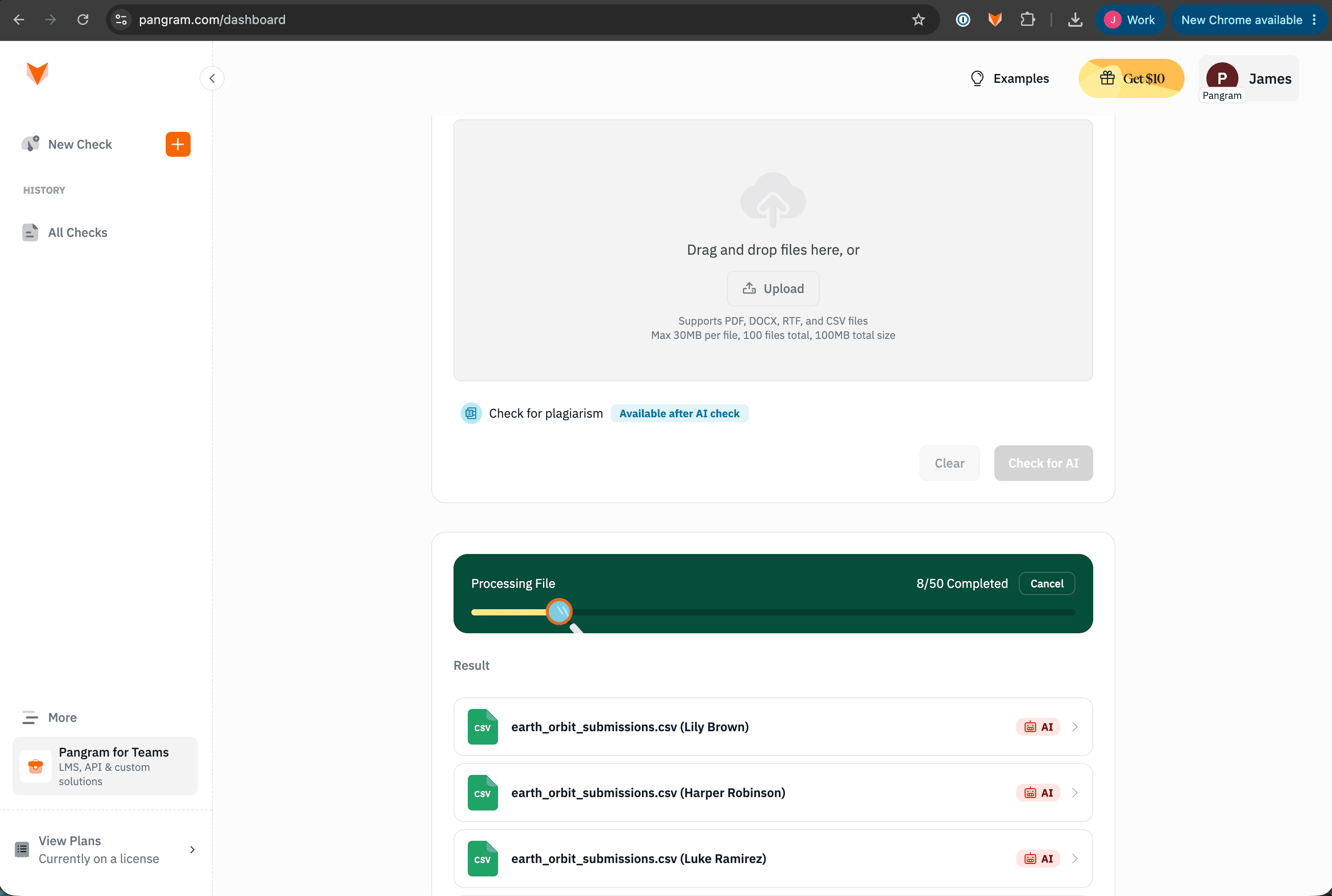
If you need to check many items, you can upload them together as rows in a CSV or as multiple individual documents and scan them in one batch instead of one at a time. Pangram also allows you to set identifiers in columns to track your uploads after scanning them.
Note - this guide refers to bulk uploading submissions via CSV or multiple files in the dashboard. If you need to run consistent, synchronous submissions, please refer to our API documentation at https://docs.pangram.com/quickstart
Upload a batch via CSV
- Navigate to the Pangram Dashboard > New Check and select the Upload option above the test box.
- Format your CSV to have an identifier column (e.g. Name) and a text column.
- Upload the CSV and mark the identifier column as the Tag Column, and the text column as the Text Column. Then click Scan {Number} Rows.
- In this example, our CSV has a headers row, with one column titled "name" and one column titled "submission". We are demonstrating bulk uploads of many student submissions for one assignment. Of course, all of this data is made up, using made up names and submissions
- Since the Tag column assigns the column values as a Tag for each scan, you may want to have a column for Tags that refers to the assignment, or the relevant group.
 Upload a batch via CSV
Upload multiple documents
Alternatively, you can simply select multiple documents via the drag and drop or upload feature. You may select or drag and drop up to 100 files total or 100MB total file size. These files will then scan independently, and each return its own scan.
Review the results
Each row (or document) appears in a results list with its own result. Click any scan to open its full result.